
EDITORIALS
Testpad is now SOC 2 Type 2 certified
Testpad now has SOC 2 Type 2 certification, which verifies our security controls work consistently over time. It’s the next step following our earlier Type 1 certification.

New to Testpad? These features will help you test faster. From keyboard shortcuts to guest testing, here's what's worth knowing.

By Pheobe
February 2, 2026
Share this article


ou've signed up for Testpad and you're staring at the interface. Now what? Testpad is pretty straightforward once you get going. There’s no mandatory training courses or complex setup needed. But like any tool, knowing which features exist (and when to reach for them) makes the difference between fumbling around and actually feeling like it’s a tool worth having.
This isn't an exhaustive manual of everything Testpad can do (we aren’t THAT big headed). It's just the features that'll save you time once you know they're there, like keyboard shortcuts, filters that let you test selectively and our guest access feature that gets stakeholders involved minus the usual friction.
Think of this as the stuff you'd want someone to show you on day two, once you've poked around a bit and are ready to test properly.
Think of Testpad as a checklist. Write your test prompts, indent related ones together, and drag rows around when you need to reprioritize. It's closer to how you'd organize tests in a document than how traditional test case management tools get you to work.
If you've used spreadsheets for testing before, you already know 80% of what you need. Testpad just makes that experience faster and more practical.
Two things to sort out first: getting your tests in, and keeping them organized.
Got tests in a spreadsheet? Copy and paste them into Testpad's import dialog. Make sure to select the "Spreadsheets" formatting option (not "Plain text") so Testpad properly handles quoted cells and tab separators.
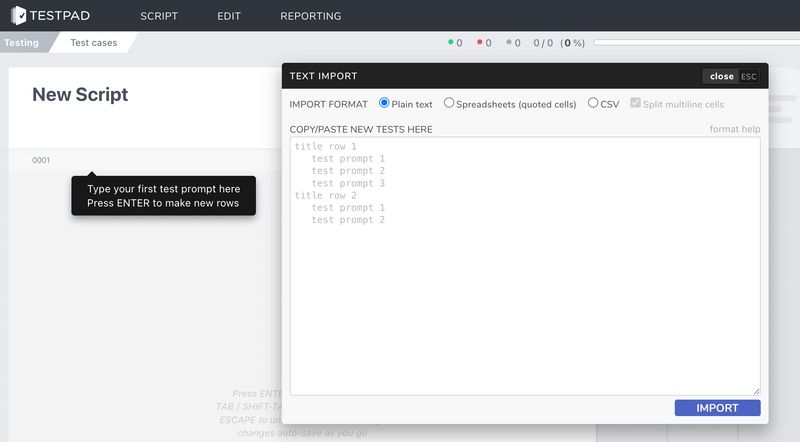
The import expects tests in the first column. If you have multi-column spreadsheets (maybe title, steps, expected results), you'll need to combine those into a single column first, using indentation or formatting that works as a single test description. Optionally, column 2 can contain tags, and column 3 can contain notes.
CSV files work the same way, just with commas instead of tabs. If you need help formatting existing tests for import, we have set up a Testpad Script Writer custom GTP that can help you format tests in seconds.
If you're starting fresh, just type your test prompts as a list. You can add structure and detail later – it's faster to iterate than to build everything perfectly upfront.
Indent tests under parent rows to create structure (use Tab or drag-and-drop to indent). Parent rows work as section headers, and you can collapse/expand them to focus on what matters. This makes long test plans readable and lets you work on one section at a time.
Tags on parent rows automatically apply to all their children, which saves time when you want to include or exclude entire sections from a test run.
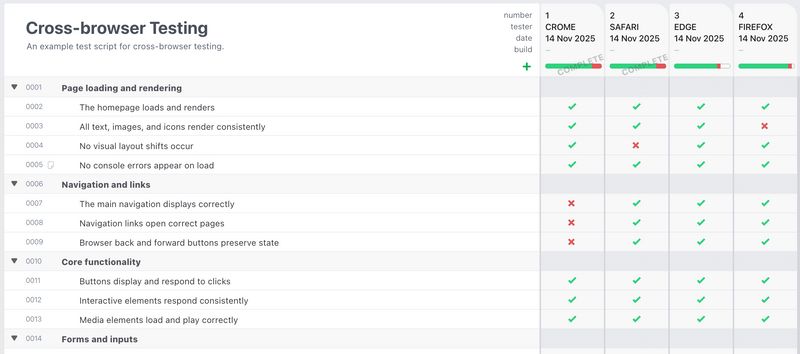
Testpad's keyboard shortcuts are designed for one thing: keeping your hands on the keyboard while you're testing. Once you learn them, you'll move through test runs faster than you can say, “wait, where’s my mouse?”
When you're running through tests, these shortcuts set results instantly:
If you need to add comments or issue numbers, hit Tab to cycle through the input fields, then use the shortcuts above to set the result and auto-advance to the next test.
These shortcuts stop you clicking around in dialogs and keeps testing flowing smoothly.
Tags let you selectively include or exclude tests from specific test runs. This is useful when you're testing in different environments, on different devices, or when you only need to run smoke tests rather than the full suite.
Open the test details dialog (double-click the row ID or type Alt-T) and add tags. Tags can be anything you find useful – browser names, priorities, test types, whatever makes sense for your testing.
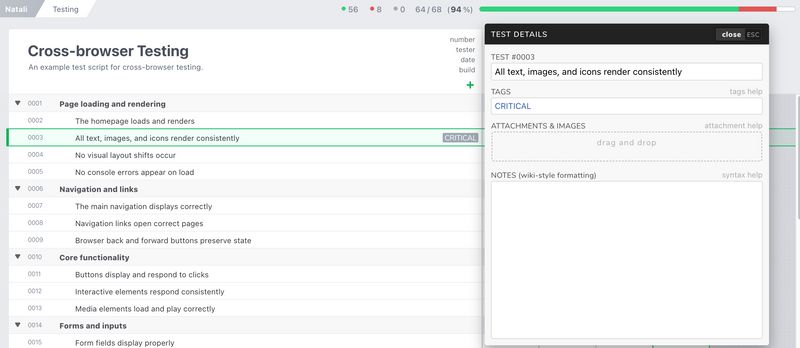
Common tagging patterns:
Each test run has a tag filter field that defaults to "ALL" (meaning it includes every test). Change this to filter which tests appear in that run.
AND logic (space or comma):
WIN HI includes only tests tagged with both WIN and HIOR logic (+ character):
WIN + MAC includes tests tagged with either WIN or MACNegation (- prefix):
-MOBILE includes all tests except those tagged MOBILECombined example:
CHROME HI + FIREFOX HI includes high-priority tests for either Chrome or FirefoxThe real power is tagging parent rows – all their children inherit those tags automatically. Tag an entire section once rather than tagging individual tests.
Testpad shows test runs as columns next to your test list. Each column represents one pass through your tests – maybe testing on different browsers, in different environments, or with different builds.
Create multiple runs to test the same script in different contexts. Each run gets custom fields at the top where you can record details like:
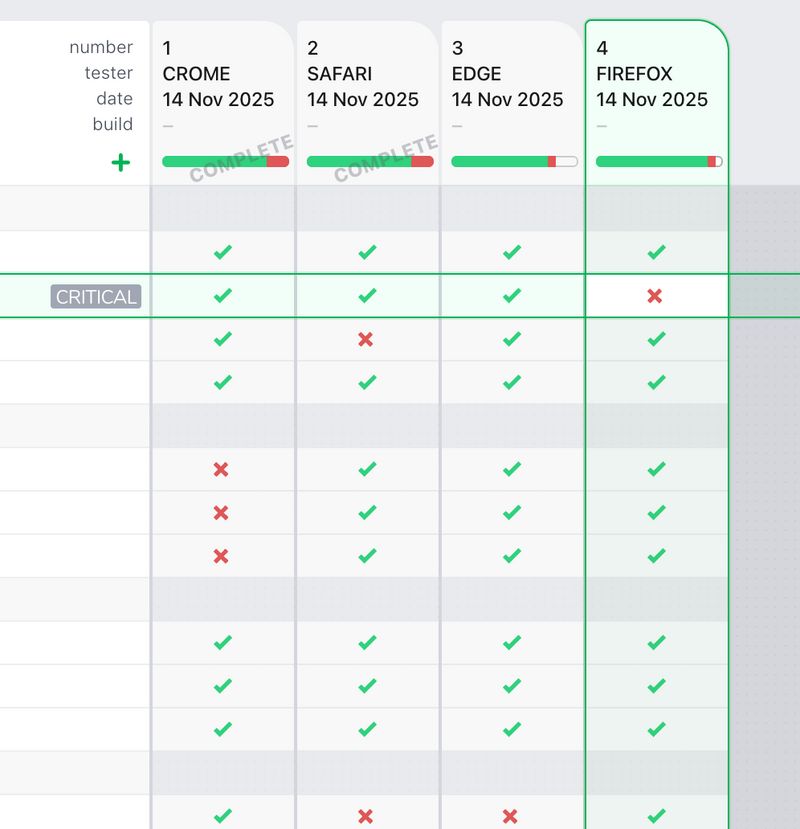
Progress bars show at a glance how many tests passed, failed, are blocked, or haven't been tested yet. This makes it obvious where you stand without digging through details.
When you fix bugs and need to retest, create a retest column. Retests replace the previous results in the display but preserve the old results in the background (they're hidden by default to reduce clutter). This keeps your view focused on current status while maintaining a record of what happened before.
Combined with tag filters, this means you can quickly rerun just the failed tests or just the smoke tests without manually tracking which ones to repeat.
Guest testing is one of Testpad's most practical features, especially when you need input from people who don't live in your test management tool.
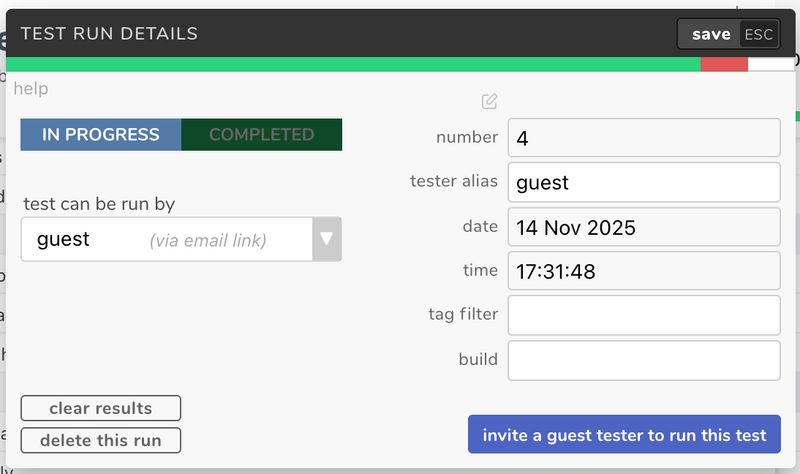
Clients who need to sign off on UAT? External contractors? Product managers who want to verify specific scenarios? Get them all testing without the usual rigmarole of creating accounts, assigning licenses, and explaining how everything works.
When creating a test run, select "Guest" as the assignee. This opens an email composer where you can send an invitation link. The recipient gets a time-limited link (like a document sharing link) that gives them access to just that one script and test run – nothing else in your account.
Guests can record results, add comments, log issue numbers, and work through tests just like regular users. They can even attach screenshots and files (on Team plans and above) to document what they're seeing. The difference is they see a focused view of only what they need to test, and the link expires after a set time. You maintain control of the test plan while they focus on testing.
Bonus: guest links work on mobile too. You can even generate a QR code for quick handoff to tablets or phones, which is handy when you want the test instructions on a separate screen from the app you're testing.
When you're testing multiple releases or products, Projects and Folders keep everything organized.
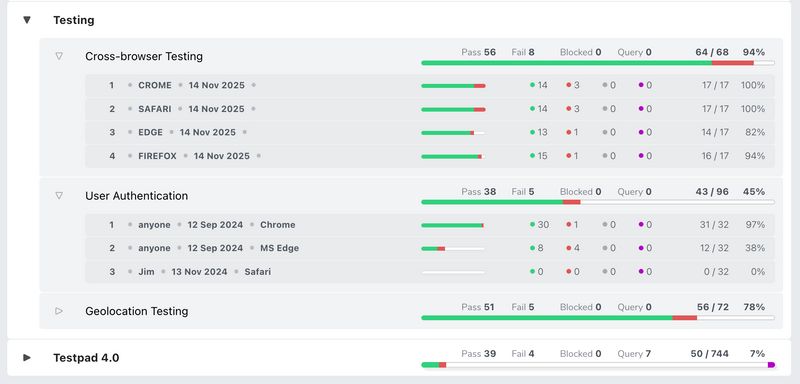
Most teams organize by release:
When a release is complete, archive the whole Project or just specific scripts within it.
When you start testing a new release, you probably want to start with tests from the previous release. Drag a script to a new Project while holding Ctrl (or Cmd on Mac) to copy it. This copies the test prompts and structure but not the results – exactly what you want for a fresh test pass.
If you have standard test patterns you reuse across products or releases, save them as templates in a Library. Drag templates onto Projects to create new scripts from those patterns. This is useful for teams with modular products where different releases might need different combinations of test suites.
Testpad doesn't try to be your issue tracker – you already have Jira, GitHub, or something else for that. Instead, it makes it easy to connect test results to issues.
Set up a bug link pattern (either at the account level or per-project). When you record an issue number in a test result, Testpad automatically makes it a clickable link that opens directly to that issue in your bug tracker.
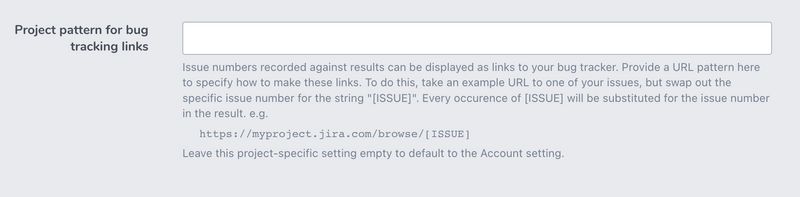
This keeps testing focused on testing while maintaining clear connections to the work that needs doing. You're not duplicating data or switching contexts unnecessarily.
On Team plans and above, you can attach images and files to both test descriptions and test results. This includes screenshots, audio files, short videos, spreadsheets, text files, and PDFs.
The workflow is straightforward: drag files onto the Attachments area in the Test Details dialog (for test descriptions) or the Test Run dialog (when recording results). If you're using Chrome, you can paste images directly from your clipboard (Ctrl-V), which pairs nicely with screenshot tools.
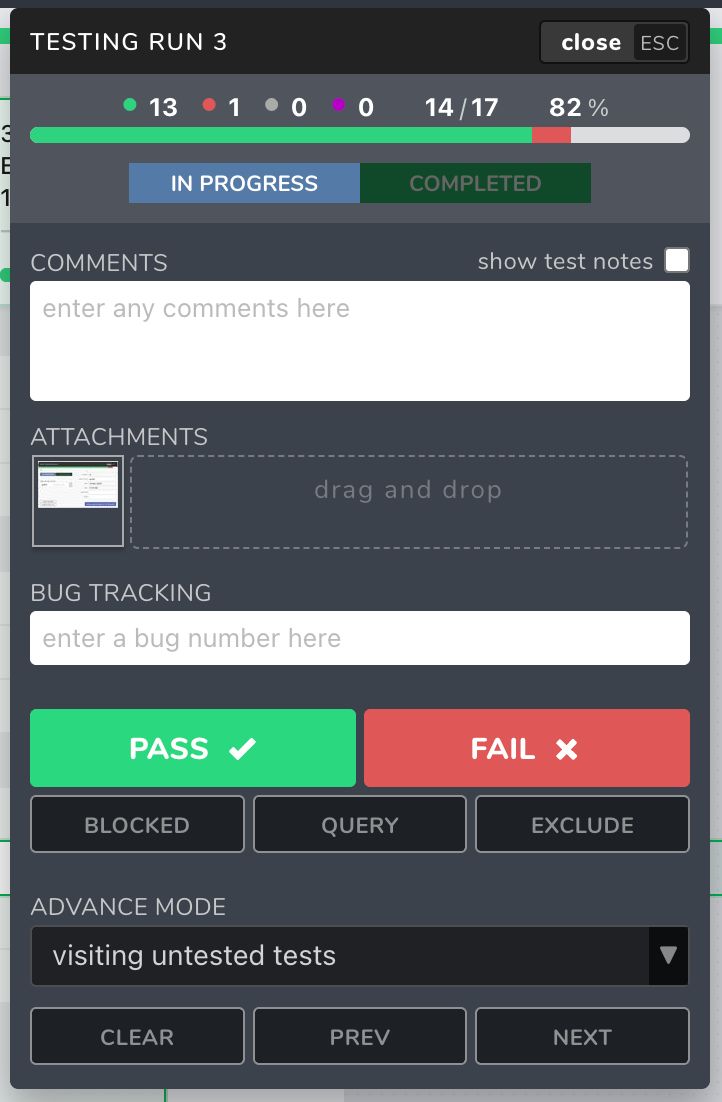
Files are limited to 6MB each, and images attached to results appear as clickable thumbnails in reports. This makes it easy to capture what you saw during testing without interrupting your flow or switching to separate documentation tools.
Testpad makes it straightforward to share testing status with people who don't need full access to your test plans.
Reports are instantly available. Share them via guest-access links (URLs with access tokens) at either the script or folder level. These read-only reports show test results, progress bars, pass/fail/blocked/query counts, comments, issue numbers, and attached images as clickable thumbnails.
For stakeholders who just need visibility into testing progress, this beats emailing status updates or scheduling meetings. Share the link once, and they can check progress whenever they want. If you prefer old-school audit trails, you can save or print the HTML reports.
For custom reporting or further analysis, export your results as CSV. This gives you the raw data to create whatever reports or metrics your team needs.
Testpad has more features than what's covered here, but these are the ones that make the biggest practical difference when you're getting started. Learn these, and you'll spend more time actually testing and less time managing your test tool.
Ready to put these into practice? You're already set up – just start testing and reach for these features when you need them. Or if you need something not listed here, drop us an email support@testpad.com and we’ll help you out.

If you liked this article, consider sharing
EDITORIALS
Testpad now has SOC 2 Type 2 certification, which verifies our security controls work consistently over time. It’s the next step following our earlier Type 1 certification.

HINTS AND TIPS
Invite guest testers to help you run your tests. Perfect for asking clients to perform User Acceptance Testing, as well as just roping in more help when you're late for a release.

EDITORIALS | EXPLORATORY TESTING
Exploratory testing is essential to uncovering hidden issues and improving the quality of real-world usage. If you’ve ever found yourself wondering what exploratory testing is, you’re not alone — and you’re in the right place.