
EDITORIALS
Device compatibility testing explained
Device compatibility testing makes sure your app works for everyone – even those still clinging to a five-year-old Android with a cracked screen and 16GB of storage that's chronically full.
You want your software to work across different network conditions beyond the fast, stable WiFi in your office. Thankfully, that's exactly what network compatibility testing is for.

By Pheobe
December 9, 2025


etwork compatibility testing makes sure your app handles the messy reality of real-world connections: slow speeds, high latency, packet loss, sudden drops, and no signal at all. You simulate those conditions with throttling and proxy tools, then check that core features still work, the UI stays responsive, and errors tell users what's happening.
At a glance
The rest of this guide covers which conditions to test, how to simulate them, and what to look for when you do.
Network compatibility testing verifies that your software handles real-world connection conditions: slow speeds, high latency, packet loss, network switching, and complete disconnection. If you've ever rage-refreshed a page or clicked "submit" three times because nothing seemed to happen, you already know what bad network handling feels like.
Your app might work great in your office, but your users aren't in your office. They're on a train going through a tunnel, or in a hotel with WiFi that promises 100 Mbps and delivers 2. They could be at a conference where 500 people are fighting for the same access point, or on a construction site with one bar of signal.
Network compatibility testing catches these problems before your users do. It's how you find out that your checkout flow breaks on high latency connections, or that your file upload silently fails when packet loss hits 3%, or that switching from WiFi to cellular mid-session logs everyone out.
This type of testing typically covers:
The specific conditions you test depend on how and where people actually use your software. A mobile app needs to handle cellular network switching. An enterprise tool needs to work behind corporate firewalls. A video streaming service needs to adapt to bandwidth fluctuations.
When your app doesn't load, or loses data mid-submission, or just spins forever without telling the user what's happening – the user won’t blame the network, they’ll blame the app.
According to Google's widely cited mobile speed research, 53% of mobile site visits are abandoned if a page takes longer than three seconds to load. The same study found sites that load in five seconds see 70% longer sessions than ones that take nineteen. Every second counts.
A page that loads in two seconds on your office network might take eight seconds on a congested mobile connection. And that's assuming the connection stays stable the whole time.
Network conditions vary wildly. Ookla's Speedtest data shows global median fixed broadband speeds around 95 Mbps, but that's just an average. Singapore users enjoy speeds over 320 Mbps. Users in some countries struggle with under 10 Mbps. Mobile speeds range from over 400 Mbps in the UAE to single digits in areas with poor coverage.
Your users could be anywhere on that spectrum, and unlike slow hardware that consistently behaves the same way, network conditions change moment to moment. The same user might go from excellent to terrible connectivity just by walking into a different room.
Network issues won’t necessarily crash your app, but they are often frustrating enough to cause users to stop using it. Here are some common scenarios your users may face if a poor network affects your app:
Timeouts with no feedback – the user clicks a button, nothing happens for thirty seconds, then an unhelpful error appears. They have no idea if they should try again or wait longer.
Lost data – someone fills out a long form, hits submit, the connection hiccups, and everything they entered disappears. Good luck getting them to fill it out again.
Broken partial states – an action partially completes before the connection drops. Now your database says one thing and the user interface shows another.
Frozen interfaces – the app makes a network request and blocks the entire UI until it completes. On a slow connection, the app appears completely unresponsive.
Silent failures – the request fails but the app doesn't tell the user. They assume their action worked when it didn't.
These failures are cheap to find once you go looking: simulate a bad connection and watch what your app does.
You can't test every possible network configuration. But you don't need to. Focus on the conditions your users actually encounter.
If you have any kind of performance monitoring, check what network conditions your users usually experience. Where are your slowest response times coming from? What percentage of users are on mobile versus desktop? Which geographic regions see the most timeouts?
This tells you where to focus. If 60% of your users are on mobile, prioritize cellular network testing. If you have significant traffic from regions with slower infrastructure, test those conditions specifically.
You're looking for patterns, not exhaustive coverage. Test representative conditions from each category:
Connection speeds:
| Condition | Speed | When to test |
|---|---|---|
| Fast WiFi/fiber | 50+ Mbps | Baseline – your app should feel snappy here |
| 4G/LTE | 10–50 Mbps | Common mobile condition; should still feel responsive |
| Slow 3G | 400 Kbps | Weak signal, rural areas, developing markets |
| Congested WiFi | 1–5 Mbps | Coffee shops, conferences, busy offices |
| Very slow | Under 500 Kbps | Edge cases – should still work, even if slowly |
Latency conditions:
Stability conditions:
What happens when the network disappears entirely? Users go through tunnels, enter airplane mode, or walk into areas with no signal. Does your app handle this gracefully, or does it just break?
Even if your app requires connectivity to function, it should tell users clearly what's happening rather than silently failing or showing cryptic errors.
You have a few options, ranging from simple to sophisticated.
Throttling lets you artificially slow down your connection to simulate what your users might experience. Instead of waiting for bad WiFi, you tell your browser to behave as if it's on a slow network.
For web apps: Chrome has this built in. Right-click anywhere on your page, select "Inspect" to open DevTools, then go to the Network tab. You'll see a dropdown that says "No throttling" – click it and choose "Slow 3G" or "Fast 3G" to simulate those conditions. Now use your app normally and see what happens. It's free, takes about ten seconds to set up, and catches obvious problems fast.
For mobile apps: iOS has a tool called Network Link Conditioner (you'll need to enable Developer Mode first). Android's emulator has similar options baked in. Both let you simulate slow or unstable connections without leaving your desk.
Browser throttling is handy, but it only works for what's running in that browser. If you're testing a native mobile app, a desktop application, or you need more precise control over conditions like packet loss, you'll want a dedicated proxy tool.
These tools sit between your device and the internet, letting you control exactly what happens to traffic passing through. You can slow it down, add delays, simulate data getting lost in transit, or block specific requests entirely.
Charles Proxy is popular for mobile app testing. You point your phone at your computer's IP address, and all traffic routes through Charles. From there you can throttle to preset conditions like "3G" or "4G," or dial in specific bandwidth, latency, and packet loss values. There's a 30-minute free trial, then it's a paid license.
Fiddler does similar things and has a free version. It's Windows-focused but works on Mac too.
The setup takes a bit longer than browser throttling – you're configuring proxy settings on your device – but you get much finer control and can test any app, not just web browsers.
Simulation is useful but not perfect. If possible, test on real networks that match your users' conditions. Take a laptop to a coffee shop with terrible WiFi. Test on a phone with weak cellular signal. Use a VPN to simulate international latency.
Real networks have quirks that simulations miss. A network that's technically fast but has intermittent congestion behaves differently from a consistently slow connection.
Testing network conditions is straightforward, but the complexity comes from knowing what behaviors to look for.
For each network condition, verify:
When things are slow, does the app tell users what's happening? Loading indicators, progress bars, and status messages make the difference between "this is slow" and "this is broken."
Research from Ericsson finds that smartphone user experience is largely determined by connection speed rather than latency, and you can't control either from inside your app. What you can control is feedback. Silence is worse than slowness.
Network failures happen. What matters is how your app handles them:
Partially. You can automate some aspects, but not everything. Automated tests can verify that requests complete within acceptable timeframes under simulated slow networks. They can check that your app handles timeout errors without crashing. They can confirm that offline detection works.
What automation can't easily check is whether the user experience is acceptable. Is the loading indicator clear? Does the error message make sense? Is the app frustrating to use when it's slow? These require human judgment.
Use automation for regression testing – confirming that network handling you've already verified still works after code changes. Use human testing to evaluate the actual experience.
Network conditions are one of the five angles in our guide to compatibility testing – worth a read if you're working out which of the others apply to your product.
Begin with the conditions your users most commonly encounter and test those thoroughly. Add more scenarios as you have time and as user reports reveal gaps. You're just trying to ensure most of your users can actually use your software regardless of how good their connection happens to be at that moment.
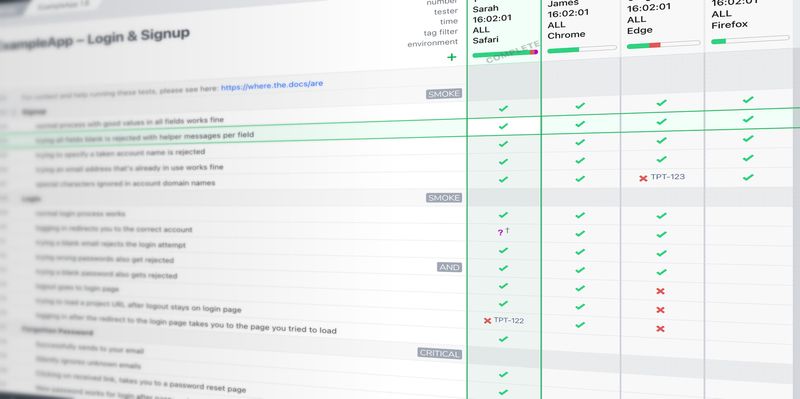
If you want somewhere to keep these checks, Testpad suits this kind of testing well: write each check as a line of plain text, add a column each time you run through them under a different network condition, and the grid shows which conditions you've covered at a glance.
Want more straightforward testing advice? Subscribe to get practical tips on mobile testing, exploratory testing, and keeping quality high straight to your inbox.

If you liked this article, consider sharing
EDITORIALS
Device compatibility testing makes sure your app works for everyone – even those still clinging to a five-year-old Android with a cracked screen and 16GB of storage that's chronically full.

EDITORIALS
Your app needs to work on more than just the phone in your pocket. That’s why you need mobile OS compatibility testing – to check your app works as it should on both iOS and Android devices.

EDITORIALS
Need to get to grips with all things compatibility testing? This handy guide walks you through exactly what it means, when you’ll need it, the various types, and the tools that make it simpler.