
EDITORIALS
Device compatibility testing explained
Device compatibility testing makes sure your app works for everyone – even those still clinging to a five-year-old Android with a cracked screen and 16GB of storage that's chronically full.

Need to get to grips with all things compatibility testing? This handy guide walks you through exactly what it means, when you’ll need it, the various types, and the tools that make it simpler.

By Pheobe
January 10, 2026


ompatibility testing proves your software works properly across different browsers, devices, operating systems, and networks – catching problems before users find them.
Say your app works beautifully on Chrome running on your MacBook. It looks perfect, responds instantly and handles everything you throw at it. Then a customer tries it on Firefox on Windows 10 and half the buttons don't work. Someone else then opens it on Safari on their three-year-old iPad and it crashes on load. And finally, another person on a spotty mobile connection gets stuck on a loading screen that never ends. What’s going to happen to those users? They get frustrated, give up, and never come back.
Compatibility testing catches these problems while you can still fix them cheaply – and before they turn into angry support tickets, one-star reviews, and lost revenue.
At a glance
Compatibility testing gives peace of mind that your software performs as it should across:
The goal of compatibility testing is to find configuration-specific issues before your users do.
Because your users aren't all in the same environment you build in, and any difference can hide its own bug.
Browsers are actually the reassuring part. Most of the web now runs on a handful of rendering engines: Chrome, Edge, Brave, and Opera all share Chromium's, so a page that works in one usually works in all of them. The real spread is everywhere else. Your users are on different operating systems and OS versions, different screen sizes, different hardware, and connections that come and go. A build that's flawless on your machine can still fail on theirs because one of those things is different.
The numbers show how wide that spread is. Fewer than a quarter of Android devices run the current Android version, and almost a third are on Android 12 or older (StatCounter, May 2026). Even the single most common screen resolution is barely 8% of traffic, so there's no "normal" screen to design for. And every iPhone runs Safari's engine, which updates on Apple's schedule and is usually last to support new web features, so the one browser difference that does bite is the one you can't avoid.
Skip compatibility testing and you'll find these the expensive way: through customer complaints, support tickets, and the users who don't complain at all – they just leave for a competitor.
There are five main types of compatibility testing. Pick the ones that matter for your product and who uses it:
| Type | What it covers | Typical failures | Who needs it most |
|---|---|---|---|
| Browser | Chrome, Safari, Edge, Firefox, and their versions | Usually small now: sub-pixel text alignment, the newest CSS not yet supported everywhere (often Safari) | Web apps and websites |
| Device | Phones, tablets, desktops | Touch targets too small; slow on older hardware; layouts that assume a big screen | Anything users open on a phone |
| Operating system | Windows, macOS, Linux, iOS, Android | File paths, permissions, fonts; version-specific bugs | Desktop and native mobile apps |
| Network | Connection speeds, interruptions, proxies | Endless loading; timeouts; lost form data | Apps used on the move |
| Hardware | Processors, graphics, memory, peripherals | Crashes on minimum-spec machines; driver conflicts | Games, design tools, anything talking to physical equipment |
Modern browsers agree with each other far more than they used to. The Chromium family (Chrome, Edge, Brave, Opera) shares one engine, so the days of a page rendering completely differently in each browser are mostly behind us. What's left tends to live in the details: a few pixels of difference in how text or spacing lands, and the newest CSS or JavaScript features arriving in one engine before the others. Safari is the usual exception, because it's on its own engine and its own update schedule.
So you don't need to test everything in everything. Check your analytics, cover the browsers your users actually run (current versions plus one or two back), and give Safari a deliberate look if you have iPhone or iPad traffic. If your analytics show 2% of traffic from Opera Mini, skip it.
What to check:
MDN keeps a good introduction to cross-browser testing if you want the deeper web-platform detail.
Read more: Browser compatibility testing
Smartphones, tablets, desktops – each brings headaches around screen sizes, touch vs mouse, processing power, and memory. The big traps: touch targets that are comfortable with a mouse but impossible with a thumb, on-screen keyboards that cover the field being typed in, and performance that feels fine on a new phone but crawls on a three-year-old one.
What to check:
Emulators are fine for layout, but touch feel and real performance only show up on physical devices.
Read more: Device compatibility testing
Windows, macOS, Linux, iOS, Android – each has its own ideas about file paths, permissions, fonts, and resources. Common issues: Windows loves backslashes while everyone else uses forward slashes, permission models that work completely differently, fonts that render inconsistently.
Versions matter as much as the OS itself. Remember the Android numbers above: a quarter of devices on the current version, almost a third on releases that are four or more years old. iOS updates faster, but not instantly, and Windows users sit on older releases for years.
What to check:
Read more: OS compatibility testing and Mobile OS compatibility testing
Test how your app handles slow connections (3G that feels like dial-up, coffee shop WiFi), network interruptions, proxy configurations, and geographic restrictions. Slow is only half of it: real networks are also flaky. Connections drop mid-request, switch from WiFi to cellular halfway through an upload, and come back with a different IP.
What to check:
Read more: Network compatibility testing
Different processors, graphics cards, memory, and connected devices like printers or webcams. Matters most for apps that need serious power, software that connects to physical equipment, or tools with minimum specs your users need to meet.
Test on a machine that just meets your minimum spec, not the workstation you develop on. Graphics drivers are the classic trap: the same GPU can behave differently across driver versions, which is why games publish known-good driver lists.
And if the product you're testing is hardware – devices, firmware, electronics coming off a line – that's a bigger job than a compatibility pass: test campaigns across product variants, revisions, and environments. We've written separately about managing hardware testing.
Read more: Hardware compatibility testing
The right tools give you access to the conditions your users actually experience. Here's what works, depending on what you're testing:
Browser testing services - BrowserStack, Sauce Labs, and LambdaTest are cloud platforms that let you test on hundreds of real browsers and devices without owning them. You can test on Safari 12 on an iPhone 8, Chrome 95 on Windows 10, or whatever specific combination your users run. Not cheap (check their current plans for what entry tiers cost), but cheaper than production bugs.
Browser dev tools - The dev tools already built into Chrome, Firefox, and Edge do more than resize the window. They emulate a range of device screen sizes and pixel densities, throttle the connection to simulate slow or flaky networks, mimic touch, and spoof a mobile user agent, all without installing anything. Good for a fast check while you build, but not a substitute for a real device before you ship: emulation misses subtle rendering issues, touch quirks, and real device performance. It's a simulation, not the real thing.
Feature support tables - caniuse.com isn't a testing tool, but before you test a feature at all it tells you which browsers and versions support it. It will often explain why something works in Chrome and not in Safari before you've opened a single device.
Network simulation - Tools like browser dev tools, Charles Proxy, and Network Link Conditioner artificially slow down your internet connection so you can see how your software handles slow networks or spotty connections. For realistic testing though, actual networks behave differently than simulated ones.
Virtual machines - VirtualBox or VMware let you run Windows, Linux, or older OS versions on your computer as if they were separate machines. Useful when you need to verify behavior on specific OS versions (like Windows 7 for legacy enterprise users), but they eat up memory and processing power - overkill for simple browser testing.
Real devices - Keep a few physical devices around for critical testing. Nothing replaces actually using a phone or tablet, especially for touch interactions, performance, and visual checks. Start with whatever's most common in your user analytics.
Most teams use different tools at different times – quick checks while building, then broader testing across more combinations, then hands-on checks with real devices before shipping.
Compatibility testing works best in stages – quick checks early, thorough testing before shipping, and watching for problems after launch. Here's when to test what:
Most of compatibility testing is repetition: the same checks, run again on a different configuration. The tracking problem is making that repetition visible – what was checked, on which browser, on which OS, and what failed where.
First, though: you don't run every test on every configuration. That's thousands of combinations and most of them would fail in the same way or not at all. Testers borrow a technique called equivalence partitioning here: group the configurations that would behave the same, and test one from each group. A handful of representative setups (a current Chrome, an older Android, an iPhone Safari, a slow connection) covers far more real risk than grinding through every browser-by-OS-by-device cell. Sample the classes that differ; skip the ones that don't.
Then track what you sampled in a grid. Write your checks once, down the side. Give each representative configuration its own column: Chrome on Windows, Safari on iOS, Firefox on a slow connection. Work down each column marking pass or fail. The grid is your compatibility matrix, and the gaps in it are the configurations you haven't covered – visible without anyone writing a status report.
This is how Testpad models testing. Tests are lines of plain text in a script, and each test run is a column beside them. Add a column per configuration and the report becomes a wall of checks and crosses: every test, on every setup, at a glance. When a Safari fix lands, add a fresh Safari column and re-run just those checks; the earlier run stays put as history.
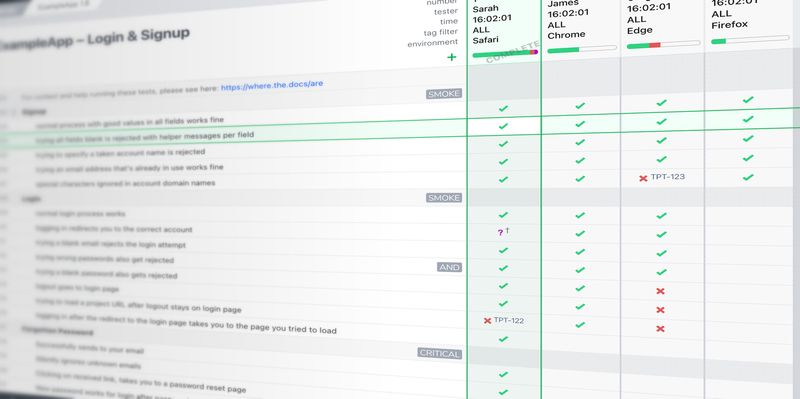
Two habits make the matrix work harder. When a configuration-specific bug turns up mid-run, add it to the plan as a new line, so it gets checked on every other configuration too. And keep the script for next release: compatibility checks barely change between cycles, so the plan you wrote this time is most of the work for the next one.
If you want to try your own checks in a grid like this, the 30-day trial is free.
If you're not doing any compatibility testing yet, don't try to test everything at once. Start with what your users actually use. Check your analytics for the top 3-5 browser and device combinations. Test those manually before each release. When you find issues, write them down – which browser, which feature, what broke. Over time, you'll spot patterns in what tends to break and where.
As you get comfortable, gradually add more combinations. Maybe you started testing Chrome and Safari on desktop – add mobile. Then add Firefox. Then older versions. Build up your testing as you learn what matters for your users. What matters is understanding how your software behaves in the real world and catching issues that would annoy users. Start with basic coverage, find problems that matter, evolve as you learn what breaks.
We write about testing at Testpad. Sign up and we'll send you useful testing tips (not in a constant, needy ex kind of way though, don’t worry).

If you liked this article, consider sharing
EDITORIALS
Device compatibility testing makes sure your app works for everyone – even those still clinging to a five-year-old Android with a cracked screen and 16GB of storage that's chronically full.

EDITORIALS
Wanting a better grasp of hardware compatibility testing? This guide shows you what it is, when you’ll need to use it, the software issues it can reveal, and how to actually start doing it.

EDITORIALS
Your app needs to work on more than just the phone in your pocket. That’s why you need mobile OS compatibility testing – to check your app works as it should on both iOS and Android devices.